

Acer phones
- Hold down the power and volume-down buttons for a couple of seconds.
- Pull down the notification panel to reach quick settings and tap the Screenshot icon.
Asus phones
- Hold down the power and volume-down buttons for a couple of seconds.
- Pull down the notification panel to reach quick settings and tap the Screenshot icon.
HTC phones
- HTC U series: Hold down the power and volume-down buttons for a couple of seconds.
- HTC 10: Hold down the home and volume-down buttons OR hold down the power and volume-down buttons for a couple of seconds.
- All other HTC phones: Hold down power and volume-down buttons for a couple of seconds.
Huawei and Honor phones
- Hold down the power and volume-down buttons for a couple of seconds.
- Pull down the notification panel, switch to Shortcuts, and tap the Screenshot icon.
Lenovo
- Hold down the power and volume-down buttons for a couple of seconds.
- Pull down the notification panel and tap the Screen Shot icon.
LG phones
- Hold down the power (located on the back of the phone) and the volume-down buttons for a couple of seconds.
- Pull down the notification panel and tap the Capture+ icon.
Motorola phones
- Hold down the power and volume-down buttons for a couple of seconds.
Nexus and Pixel phones
- Hold down the power and volume-down buttons for a couple of seconds.
Samsung phones
- Galaxy S8: Hold down the power and volume-down buttons for a couple of seconds.
- Galaxy S7 and earlier: Hold down the home and volume-down buttons for a couple of seconds.
Sony phones
- Hold down the power and volume-down buttons for a couple of seconds.
- Hold down the power key until a screen appears and tap Take screenshot.
ZTE phones
- Hold down the power and volume-down buttons for a couple of seconds.
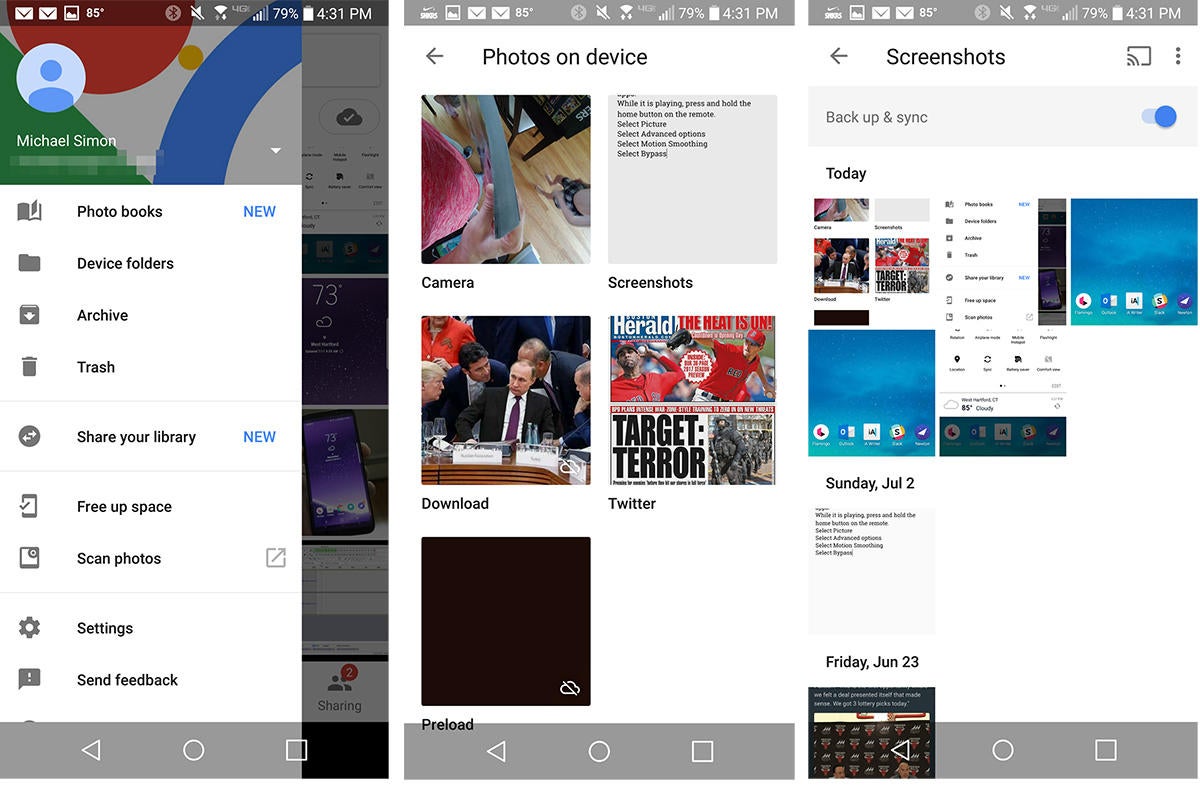 To back up your screenshots, you'll need to head over to Google Photos.[/caption]
 Save and share
Once you've snapped your screenshot you can create shortcut to it in the notification panel. Tap it and you'll be able to edit or share it. If you want to back up your screenshots to Google Photos, you might need to tell your phone to do so. Open the sidebar in Google Photos, then Device Folder. Tap Screenshots, and flip the Back up & sync toggle. From there on out, all of your screenshots will be backed up to your camera roll in Google Photos.To comment on this article and other Fabtechnoid content, visit our Facebook page or our Twitter feed.
http://fabtechnoid.com/

 Hello, my name is Jack Sparrow. I'm a 50 year old self-employed Pirate from the Caribbean.
No comments:
Post a Comment